Article 22: How to understand your Financial & Tax report
How to understand your Financial & Tax report
Your Financial & Tax report brings together the money you've received, the expenses you've recorded and other information that may be useful when preparing your business records for tax time.
It also helps you see how your business is performing compared with previous periods.
Open your Financial & Tax report
Select Reports from the main menu.
Open the Financial & Tax tab.
Choose the reporting period you want to review.
You can select this month, last month, this financial year, last financial year, the last 12 months or a custom date range.
Understanding your financial figures
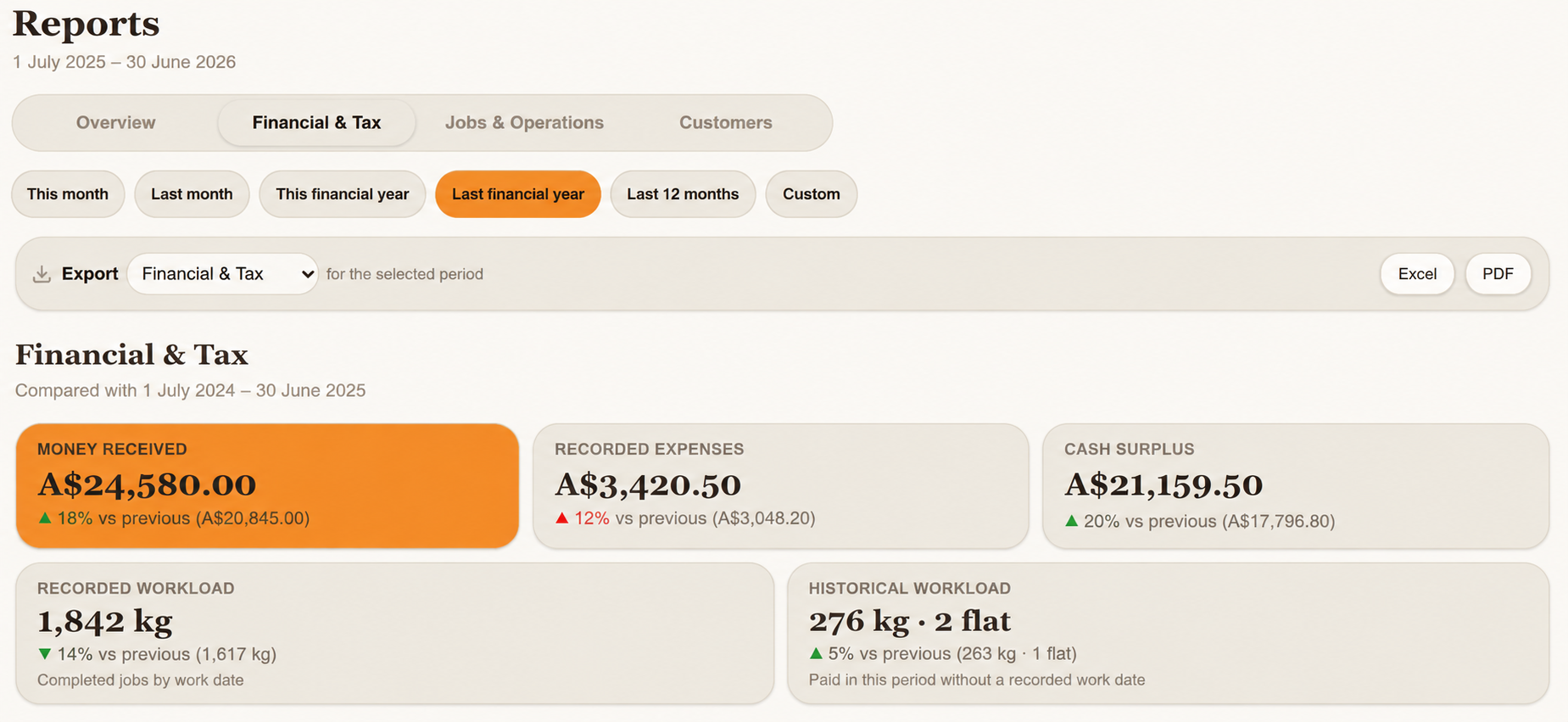
At the top of the report, you'll see five summary cards.
Money received
The total payments recorded during your selected period, based on their payment dates.
Where available, Snook also compares this figure with the previous equivalent period so you can see whether your income has increased or decreased.
Recorded expenses
The total business expenses you've entered into Snook during the selected period.
If you haven't recorded your expenses, this figure may show $0 even though you've spent money running your business.
Cash surplus
Your recorded money received minus your recorded expenses.
This gives you an indication of your cash position, but it isn't necessarily your actual profit.
Recorded workload
The total kilograms from completed jobs with a recorded work date during the selected period.
Historical workload
Laundry quantities from paid jobs that don't have a recorded work date.
This is particularly useful if you've imported historical jobs into Snook. Their payments can still appear in your financial reports, even when Snook doesn't know the date the laundry work was completed.
Expenses by category
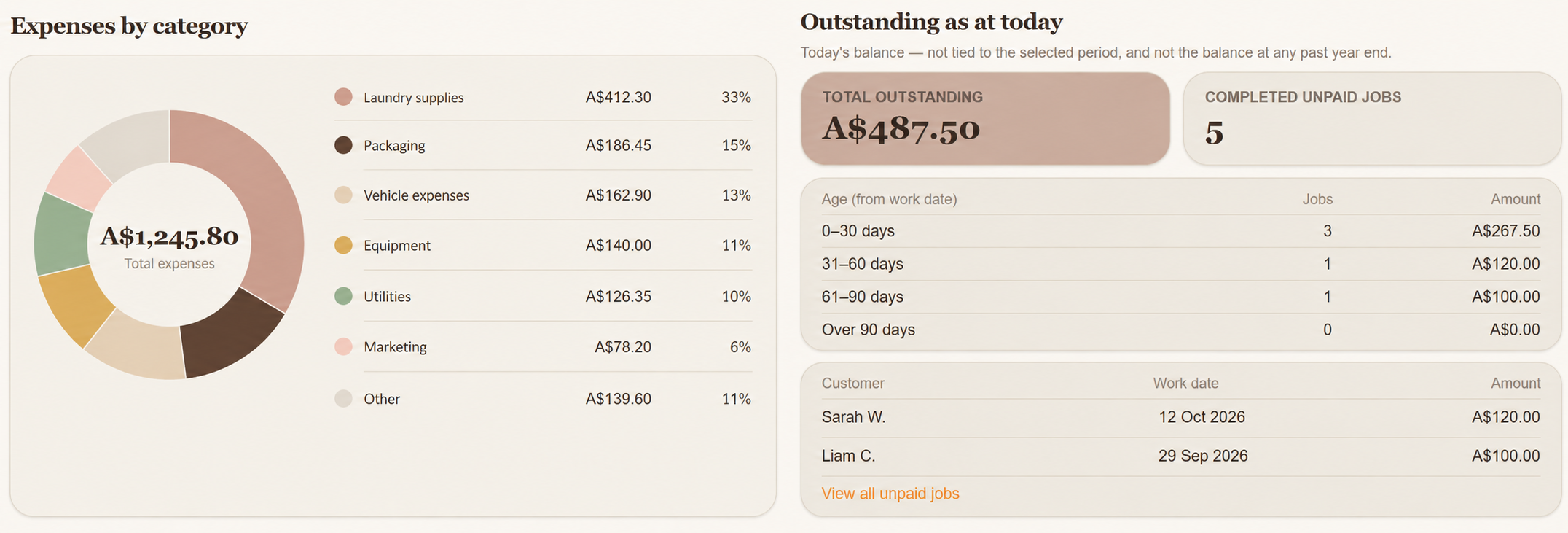
This section shows how your recorded business expenses are divided between different categories.
For example, you might record spending on laundry detergent, packaging, vehicle expenses or equipment.
As you add expenses and assign categories, Snook organises them here so you can see where your business money is going.
If you haven't recorded any expenses for the selected period, this section will be empty.
Outstanding as at today
This section shows how much money is currently outstanding from completed unpaid jobs.
You'll see your total outstanding balance, the number of completed unpaid jobs and a breakdown of how long those payments have been outstanding.
The ageing groups are:
0–30 days
31–60 days
61–90 days
Over 90 days
These are based on the recorded work date.
You can also see the customers and jobs associated with outstanding balances.
Important: This section shows your outstanding balance as at today, regardless of which historical reporting period you've selected.
For example, selecting last financial year won't show what customers owed you at the end of that financial year. It will still show your current outstanding balance.
Tax preparation summary
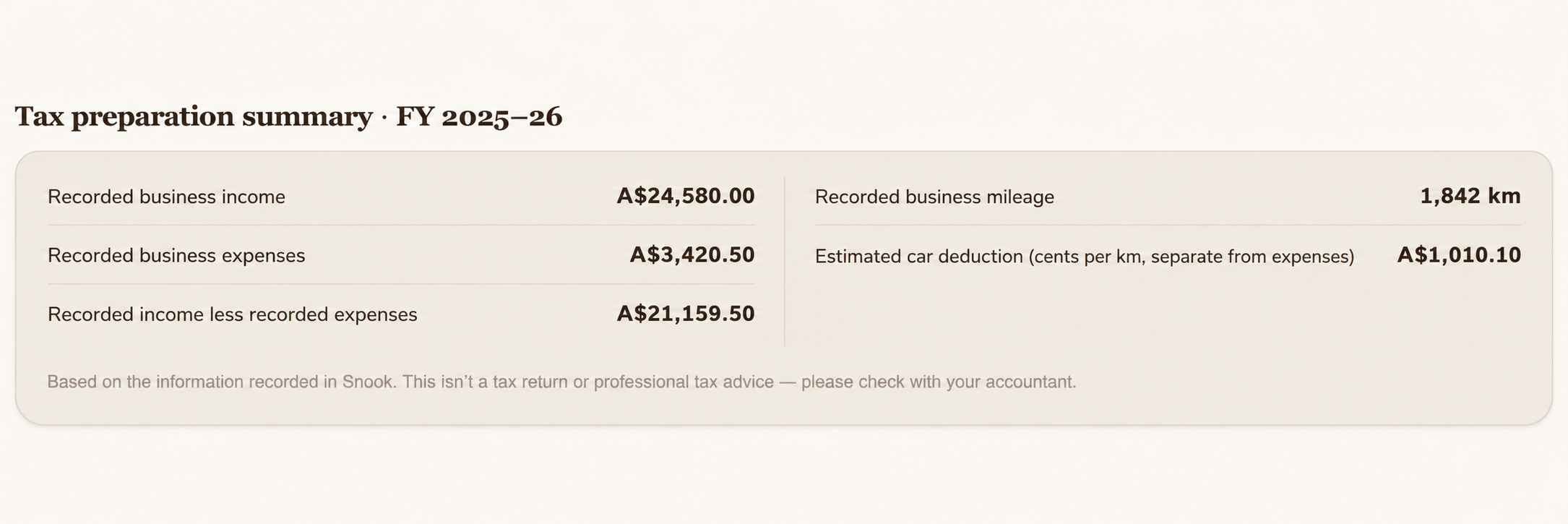
At the bottom of the report, you'll find a summary of the business information you've recorded in Snook.
This includes:
Recorded business income
Recorded business expenses
Recorded income less recorded expenses
Recorded business mileage
Estimated car deduction using the cents-per-kilometer method
The car deduction estimate is shown separately from recorded expenses.
These figures are based on the information you've entered into Snook. Missing expenses, payments or mileage records can affect the totals.
Snook doesn't prepare or lodge your tax return. This summary is intended to help you organise your records, and you should check your tax treatment and deductions with your accountant or tax professional.
Download your Financial & Tax report
Open Reports.
Select your reporting period.
Choose Financial & Tax from the Export dropdown.
Click Excel or PDF to download your report.
You can save a copy for your own records or share it with your accountant.
Need help?
Still need a hand? Email us at support@snookapp.au and we'll be happy to help.