Article 13: How to update and manage a laundry job
How to update and manage a laundry job
Once a job has been created in Snook, you can update its details as the laundry moves through your business.
This includes collection and delivery arrangements, laundry weight, services, payment and job status.
Open a job
Open Jobs.
Find the job under Upcoming, Completed or All.
Select the job to open Edit job.
Update collection and delivery details
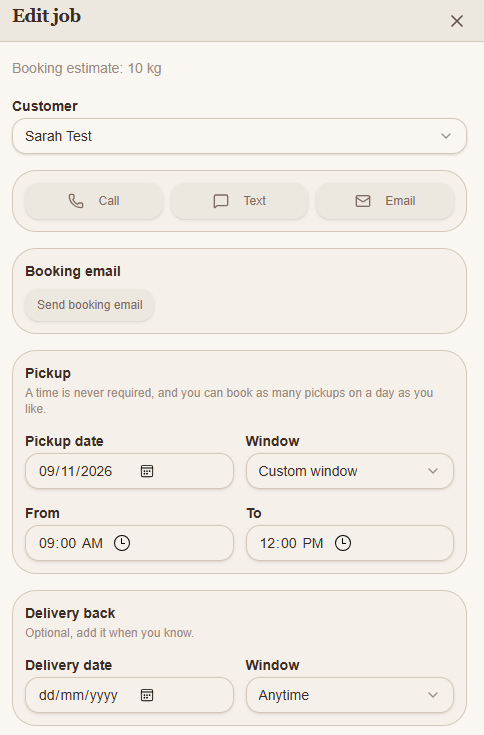
Under Pickup, you can change the collection date and time window.
Under Delivery back, you can add a delivery date when you know when the laundry will be ready.
You can also use the Call, Text and Email buttons to contact your customer.
Update the laundry weight and price
If a customer booked online, you may see their estimated weight at the top of the job.
This is only an estimate. It doesn't automatically become the billable weight.
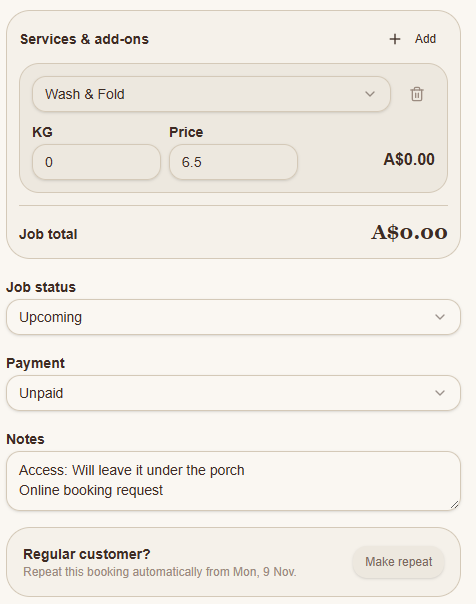
Scroll to Services & add-ons.
Check that the correct service is selected.
Enter the actual laundry weight in KG, or the relevant quantity for another service.
Check the price and calculated job total.
Select Save job.
You can add another service or extra charge using + Add.
Update job status and payment
Use the Job status dropdown to update the job as it progresses.
Use the Payment dropdown to record its payment status.
These are separate settings, so completing a laundry job doesn't automatically mean it has been paid.
Add notes and manage other details
Use Notes to record important information about the job, such as collection instructions or customer requests.
You can also:
Select Make repeat to set up repeat bookings for a regular customer.
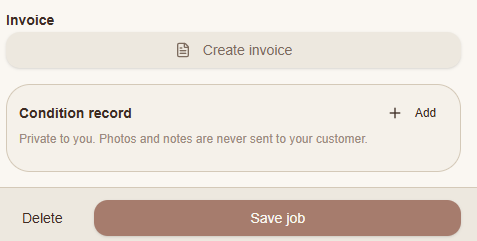
Select Create invoice when you're ready to invoice the customer.
Use Condition record to add private photos and notes about the laundry's condition.
Condition records are private to your business and aren't sent to the customer.
Remember to select Save job after making changes.
Need help?
Still need a hand? Email us at support@snookapp.au and we'll be happy to help.