Article 8: How to create a laundry job
How to create a laundry job
You can create a laundry job in Snook to keep track of your customer's collection, delivery, services and payment.
Start a new job
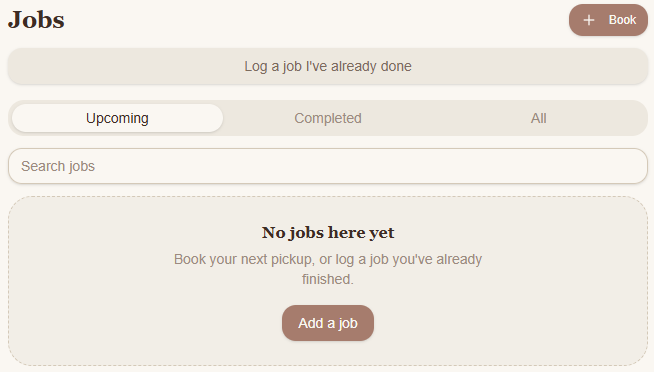
Open Jobs.
Select Book or Add a job.
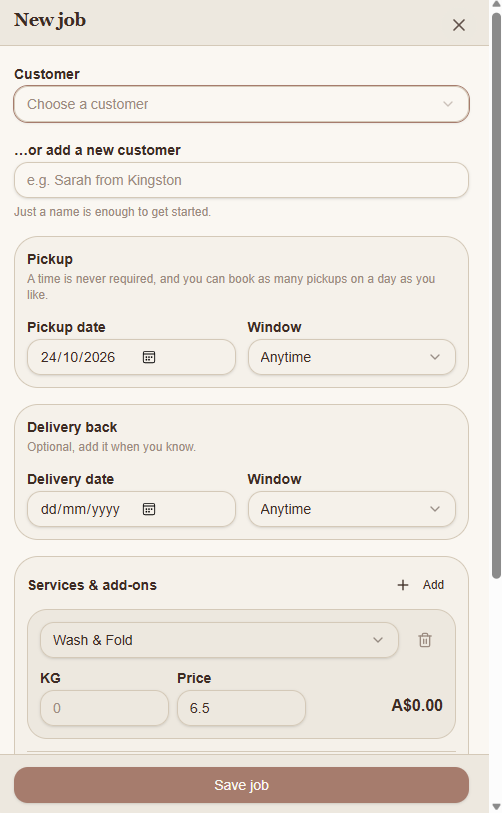
Under Customer, select an existing customer or enter a new customer's name.
You only need a name to get started.
Add collection and delivery details
Under Pickup, choose the collection date and a time window.
You can select Anytime if you haven't arranged a specific time.
Under Delivery back, you can enter the delivery date and time window if you already know them.
Delivery details are optional and can be added later.
Add services and pricing
Under Services & add-ons:
Choose the service you're providing.
Enter the quantity, such as the number of kilograms or items.
Check the price.
Select Add if you need to include another service.
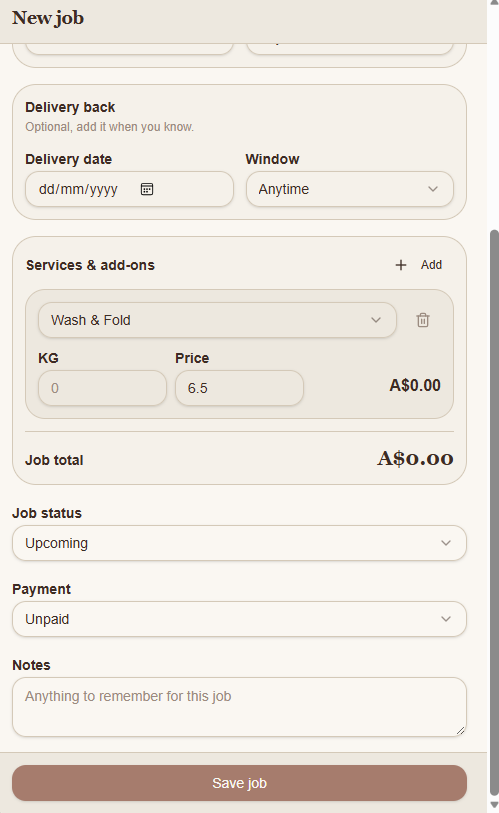
Snook calculates the job total from the services and quantities entered.
If you don't know the laundry's weight yet, you can update the quantity later.
Set the job status and payment
Under Job status, select the appropriate status. A new booking will normally start as Upcoming.
Under Payment, choose the payment status. Leave it as Unpaid if the customer hasn't paid yet.
You can also add information under Notes, such as special instructions or anything you need to remember about the job.
Save your job
Select Save job at the bottom of the form.
Your job will be added to Snook, where you can open it again to update the details as the laundry progresses.
Need help?
Still need a hand? Email us at support@snookapp.au and we'll be happy to help.