Article 38: How to add services and charges to a job
How to add services and charges to a job
Not every laundry booking will be the same.
One customer might only need Wash & Fold, while another might have doonas, blankets or additional services that need to be charged separately.
Snook lets you add multiple services to a job and adjust the quantities and prices so the total reflects the work you've completed.
Before you start
The services you want to charge for must already be added to Snook.
To create or update your service list, go to More → Services & categories.
Once you've added your services, they'll be available to select when creating or editing a job.
How to add a service to a job
Sign in to Snook.
Go to Jobs.
Open the job you want to update.
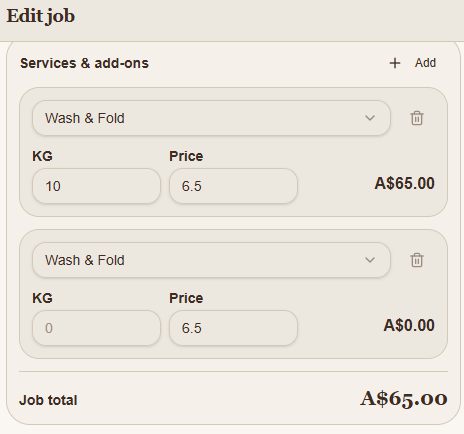
Scroll down to Services & add-ons.
Click + Add.
A new service line will appear.
Use the dropdown to select the service you want to add.
Enter the quantity and check the price.
Click Save job when you're finished.
You can repeat this process to add as many services as the job requires.
How to adjust quantities and prices
Each service line allows you to enter the quantity and price for that service.
For example, if you're charging for Wash & Fold by the kilogram, you can enter the laundry's weight and the price per kilogram.
If the customer has 10 kg of laundry at $6.50 per kilogram, Snook calculates the charge as $65.00.
For a fixed-price service, such as a pickup and delivery fee, you can enter the applicable charge.
You can manually adjust the pricing for an individual job without needing to change your standard service prices.
How to remove a service
If you've added a service by mistake or no longer need it:
Open the job.
Find the service under Services & add-ons.
Click the bin icon beside that service.
Save the job.
The removed service will no longer be included in the job total.
Understanding your job total
Snook calculates the total of the services and charges you've added to the job.
You'll see the Job total at the bottom of the Services & add-ons section.
Check the quantities, prices and total before saving, particularly if you've added additional services or changed the original booking.
If an invoice has already been issued, review the invoice separately to make sure the customer is charged correctly. Sent invoices may need to be corrected and shared again.
Need help?
Having trouble adding services or adjusting charges? Email us at support@snookapp.au and we'll be happy to help.