Article 19: How to track unpaid invoices and payments
How to track unpaid invoices and payments
Snook helps you keep track of which invoices have been paid and which customers still owe you money.
You can check invoice statuses, send payment reminders and record payments received outside Snook.
Check your invoices
Open Invoices in Snook.
Scroll through your recent invoices.
Each invoice shows the customer's name, invoice number, date, amount and payment status.
Select an invoice to open its details.
Invoices marked Paid have been recorded as paid. Invoices marked Overdue have passed their payment due date and are still outstanding.
Send a payment reminder
If a customer hasn't paid, you can send them a reminder directly from their invoice.
Open the unpaid or overdue invoice.
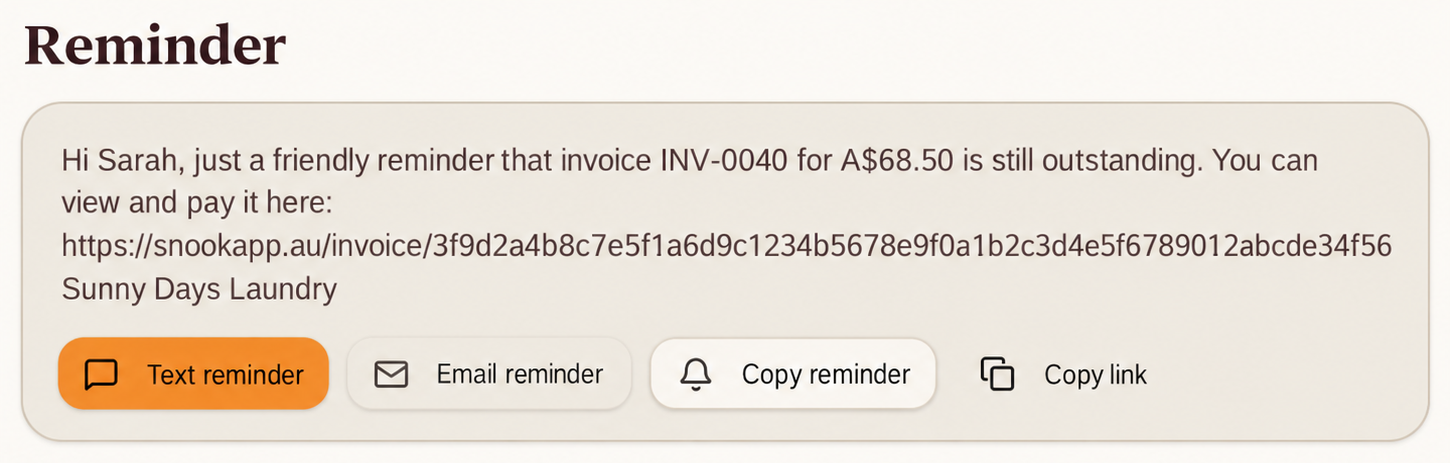
Scroll to Reminder.
Choose Text reminder, Email reminder or Copy reminder.
Send the reminder using your preferred option.
Snook prepares a reminder with the customer's name, invoice number, outstanding amount and payment link.
You can also use Copy link to share the invoice separately.
Resend an invoice
If your customer can't find their original invoice, you can send it again.
Open the invoice.
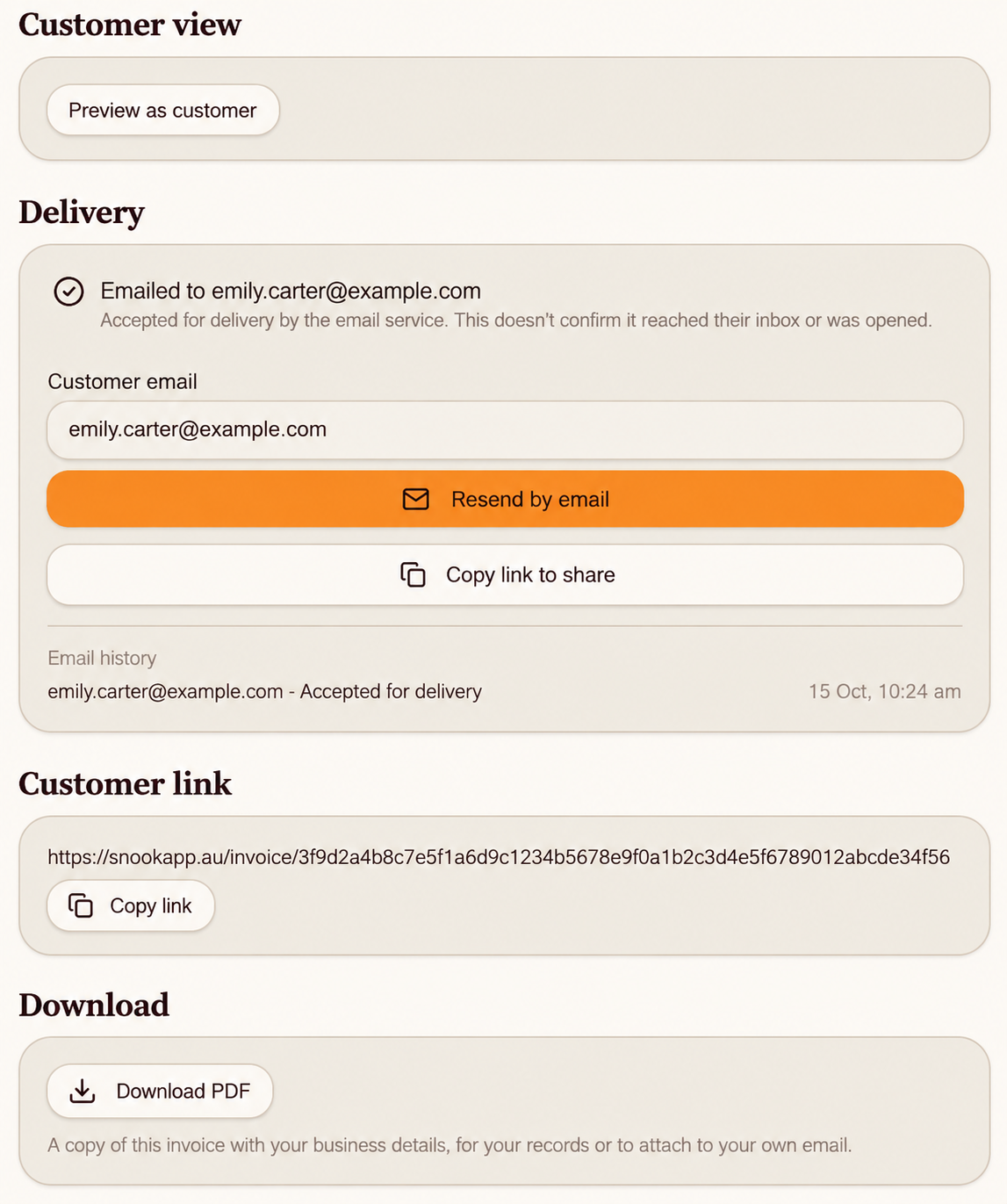
Scroll to Delivery.
Check the customer's email address.
Select Resend by email.
Snook also displays the invoice's email delivery history.
An Accepted for delivery message means the email service accepted the message for delivery. It doesn't guarantee the email reached the customer's inbox or was opened.
Record a payment manually
If a customer pays by bank transfer, cash or another method outside Snook, you can record the payment yourself.
Open the unpaid invoice.
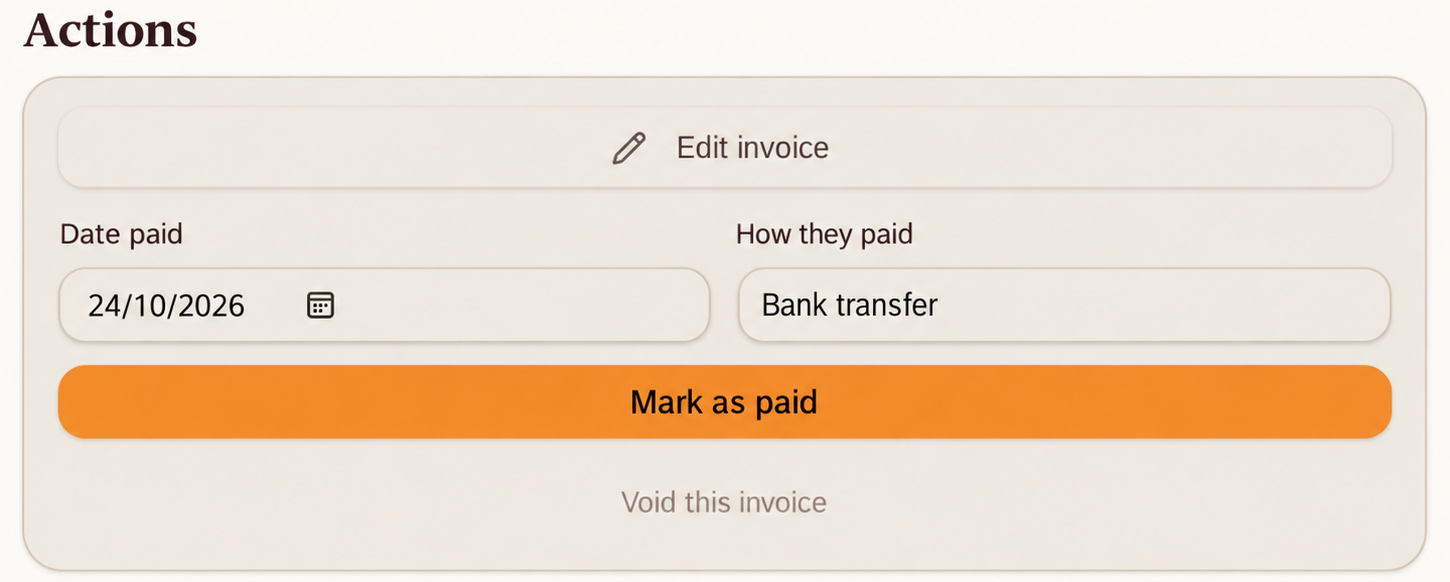
Scroll to Actions.
Enter the Date paid.
Select How they paid.
Select Mark as paid.
Only mark an invoice as paid once you've confirmed that you've received the payment.
Download an invoice
You can download a copy of an invoice for your own records or to send separately.
Open the invoice.
Scroll to Download.
Select Download PDF.
The PDF includes the invoice details and your business information.
Need help?
Still need a hand? Email us at support@snookapp.au and we'll be happy to help.