Article 36: How to resend or update an invoice
How to resend or update an invoice
Need to correct an invoice you've already sent? Or has a customer asked you to send their invoice again?
Snook lets you update an existing invoice, share its payment link and send reminders without creating a completely new invoice.
How to find an existing invoice
Sign in to Snook.
Open Jobs and find the customer's job.
Open the job and scroll down to Invoice.
Click the invoice number to open it.
You'll be able to view the invoice, access its customer link and manage any corrections.
How to correct an invoice
If you've already sent an invoice and need to change something:
Open the invoice.
Scroll down to Actions.
Click Edit invoice.
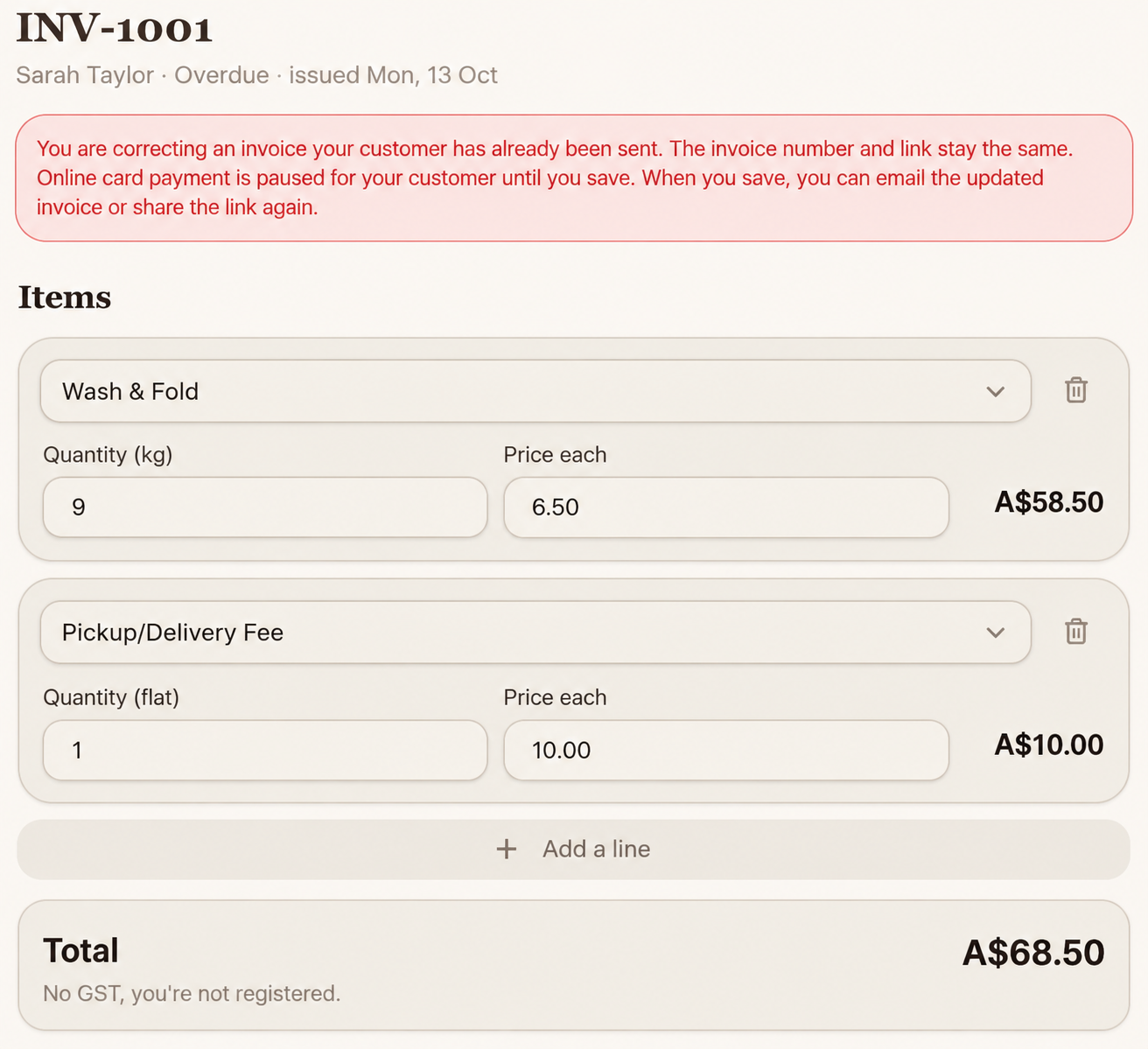
Snook will display a warning explaining that the invoice has already been sent.
Click OK to continue.
Make the necessary changes.
Scroll down and click Save correction.
You can update invoice items, quantities, prices, issue and due dates, and notes for your customer.
The invoice number and customer link remain the same.
Important: Online card payments are temporarily paused while you're correcting a sent invoice. Save your correction before sending the updated invoice to your customer.
How to resend an invoice
If your customer needs another copy, you can share the existing invoice link.
Open the invoice.
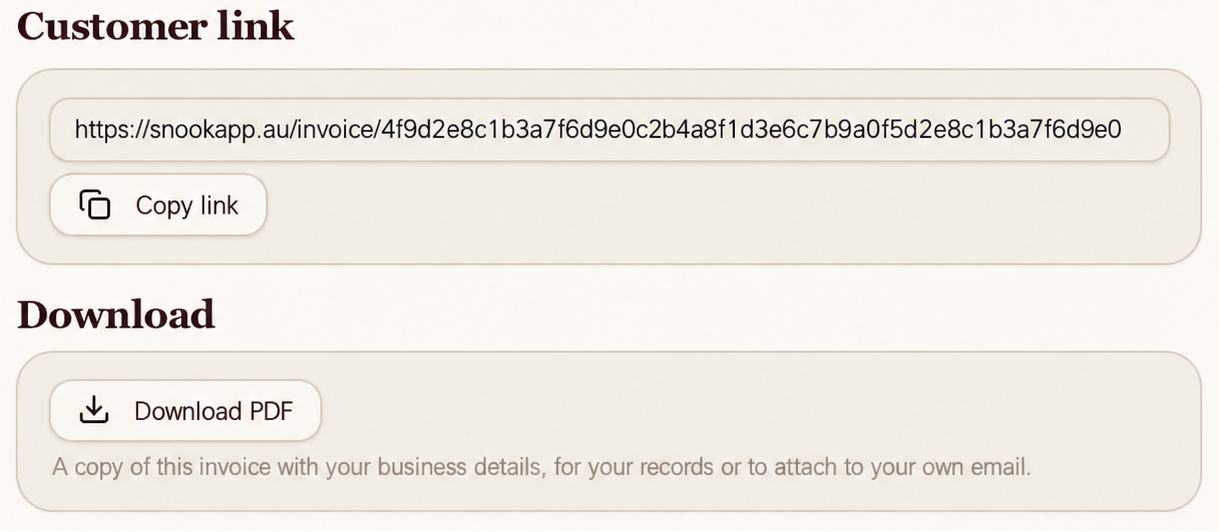
Find the Customer link section.
Click Copy link.
Paste the link into a text message, email or another message to your customer.
If you've corrected an invoice, make sure you've clicked Save correction before sharing the link again.
You can also use Download PDF if you'd prefer to attach a copy of the invoice to your own email.
How to send a payment reminder
If an invoice is still unpaid, Snook provides a reminder message with the invoice details and payment link.
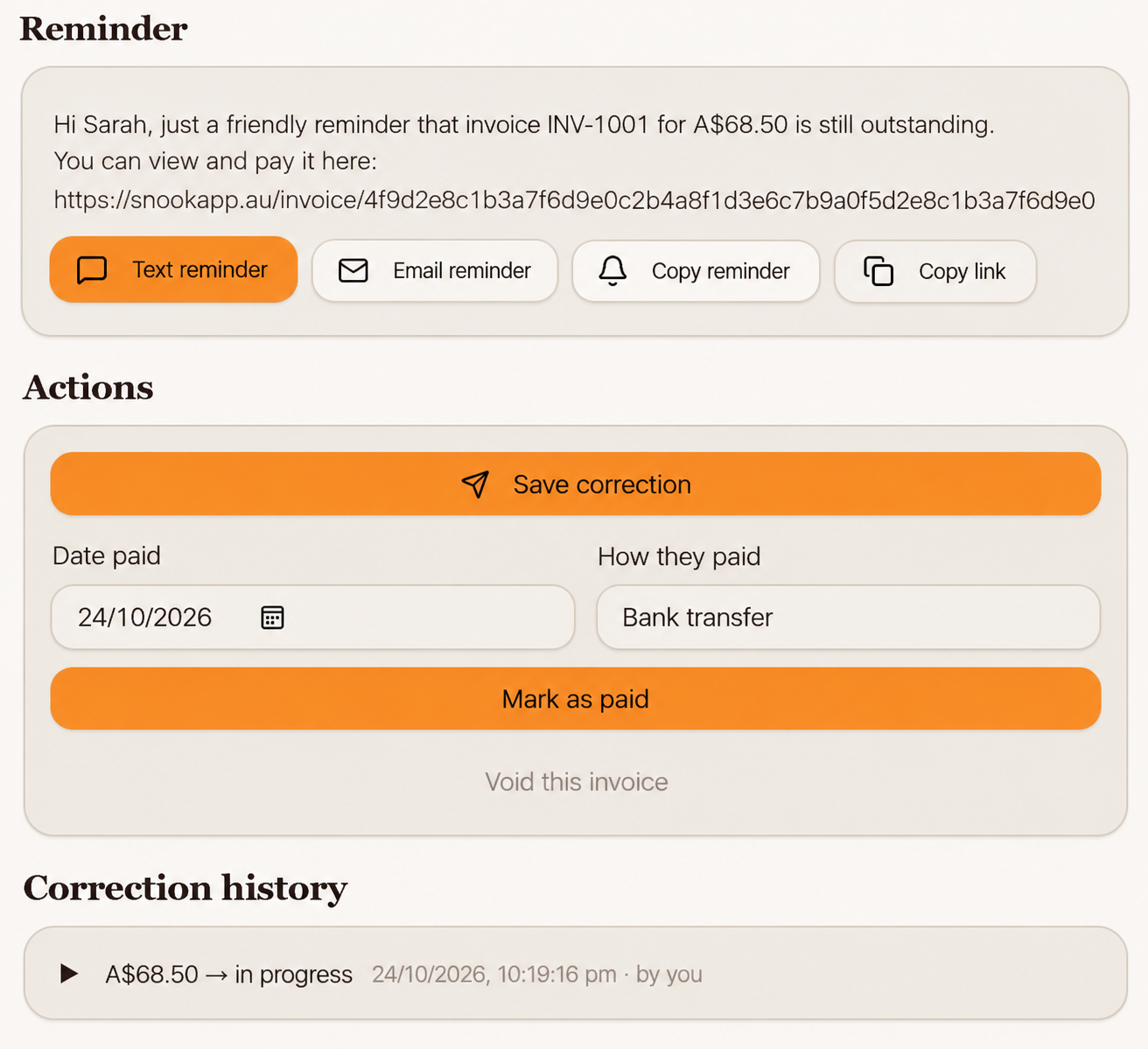
Open the invoice and scroll to Reminder.
You'll see options including:
Text reminder: Prepare a reminder to send by text.
Email reminder: Prepare a reminder to send by email.
Copy reminder: Copy the reminder wording.
Copy link: Copy the invoice link.
Choose whichever option works best for contacting your customer.
Can I see previous invoice corrections?
Yes. Snook keeps a Correction history on invoices that have been edited.
This gives you a record of corrections made to the invoice.
Need help?
Having trouble correcting or resending an invoice? Email us at support@snookapp.au and we'll be happy to help.