Article 35: How to record a payment manually
How to record a payment manually
Not every customer will pay their laundry invoice online.
Some customers might pay by bank transfer, cash or another method. Snook lets you record these payments manually so you can keep track of which invoices have been paid.
Find the unpaid invoice
Sign in to Snook.
Open Jobs and find the customer's job.
Open the job and scroll to the Invoice section.
Click Open invoice to view the invoice.
If an invoice has already been created, you'll see its invoice number in the job.
Record the payment
Once you've opened the unpaid invoice:
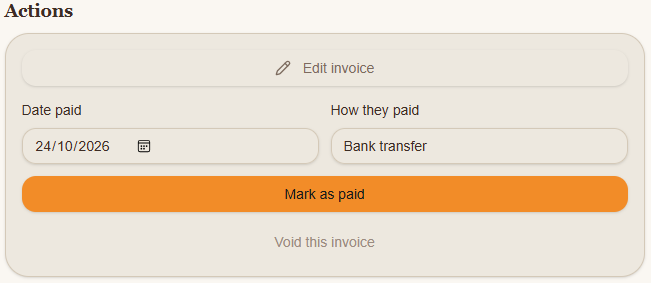
Scroll down to Actions.
Under Date paid, enter the date you received the payment.
Under How they paid, type the payment method, such as Bank transfer or Cash.
Click Mark as paid.
This records the payment against the invoice in Snook.
Only mark an invoice as paid once you've confirmed that you've received the money.
What if the customer pays by bank transfer?
If a customer pays directly into your bank account, check that the payment has arrived before marking the invoice as paid.
Once you've confirmed the deposit, open the invoice, enter the payment date and type Bank transfer under How they paid.
Then click Mark as paid.
What about the payment status on the job?
When editing a job, you'll also see a Payment field with three options:
Unpaid: Payment is still outstanding.
Paid: The job has been paid for.
Written off: The amount is no longer being pursued as payment.
For jobs with an invoice, use the invoice's Mark as paid action to record a manual payment rather than relying on changing the job status alone.
This ensures you're recording the payment against the invoice itself.
Need help?
Having trouble recording a payment? Email us at support@snookapp.au and we'll be happy to help.