Article 7: How to import customers into Snook
How to import customers into Snook
Already have customer details saved in a spreadsheet or another system? You don't need to enter them all again.
Snook can import your existing customer records from Excel or CSV files.
Upload your customer file
Open Import & export.
Under Import from another system, select Customers.
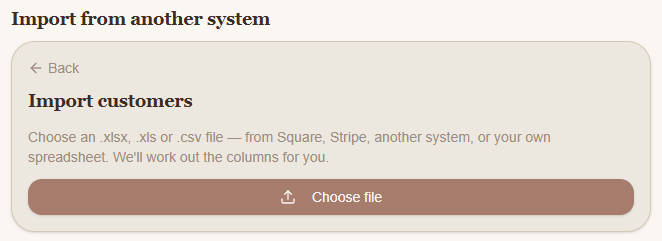
Select Choose file.
Upload your spreadsheet in
.xlsx,.xlsor.csvformat.
Snook will read your file and try to match your spreadsheet columns to the correct customer fields.
Review your customer details
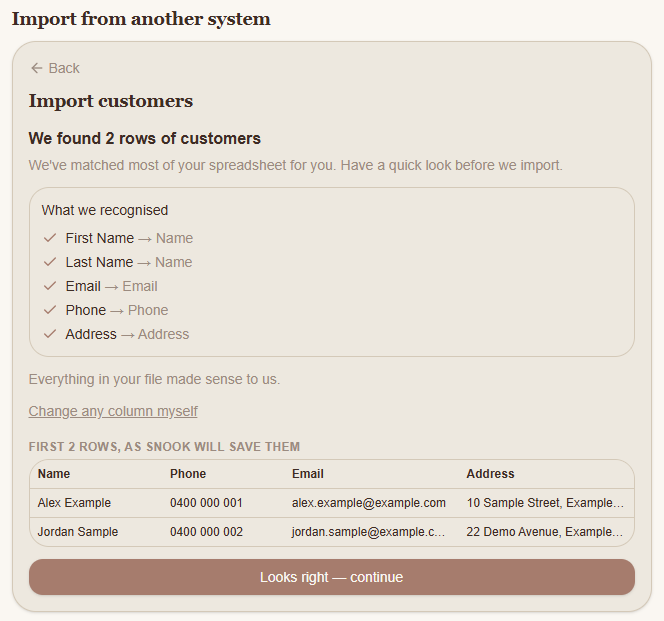
After uploading your file, Snook shows you which columns it recognised.
For example, it can recognise customer names, phone numbers, email addresses and addresses.
You'll also see a preview of how the first two customer records will be saved.
Check that the information is going into the correct fields.
If something isn't right, select Change any column myself to adjust the matching.
When you're happy, select Looks right — continue.
Check for duplicates
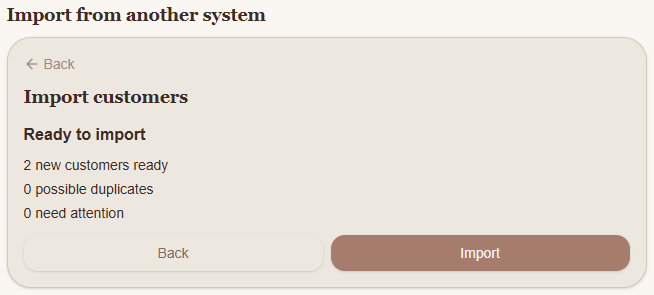
Before importing, Snook displays a summary showing:
New customers ready: Customer records ready to import.
Possible duplicates: Records that may already exist in Snook.
Need attention: Records that may need reviewing.
Check these figures before continuing, especially when importing a large customer list.
Complete your import
Review the import summary.
Select Import.
Wait for Snook to finish processing your file.
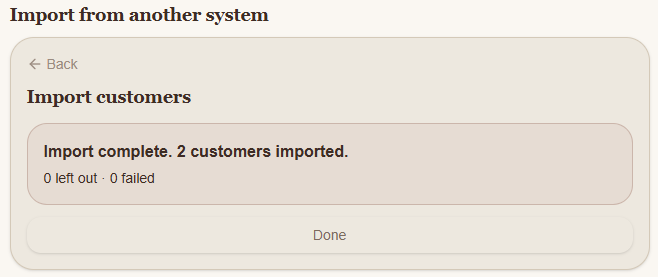
Once complete, Snook displays how many customers were imported, left out or failed.
Select Done when finished.
You can then open Customers to view your imported customer records.
Need help?
Still need a hand? Email us at support@snookapp.au and we'll be happy to help.