Article 2: How to add your services and pricing
How to add your services and pricing
Snook lets you create your own laundry services, set your prices and choose which services customers can select when booking online.
You can offer services such as wash and fold, ironing, doonas or collection and delivery. You decide what to charge and how each service is priced.
Open Services & categories
Sign in to Snook.
Open More, then My Business.
Scroll to Set up elsewhere.
Select Services & categories.
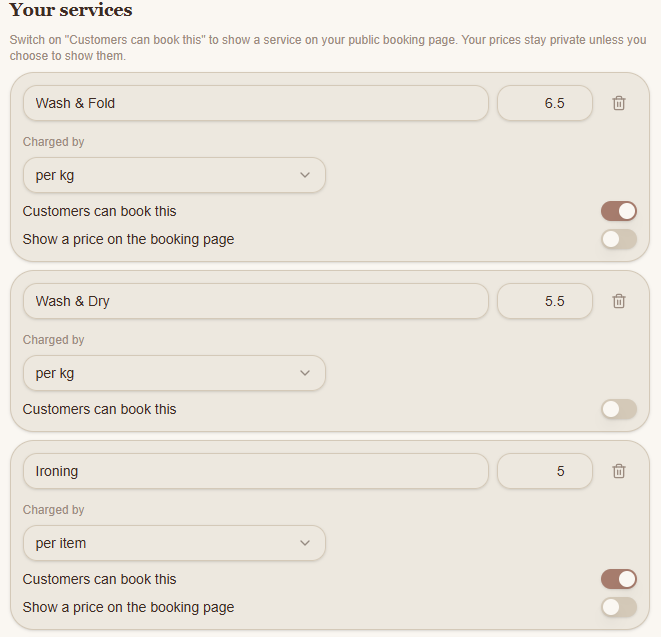
You'll see your existing services under Your services.
Edit an existing service
Each service has a name, price and charging method.
To make changes:
Find the service you want to edit.
Update its name or price in the relevant field.
Use the Charged by dropdown to choose how customers are charged.
The available charging methods are:
Per kg: Charge according to the weight of the laundry.
Per item: Charge for each individual item.
Fixed price: Charge a set amount for the service.
For example, you might charge wash and fold per kilogram, ironing per item and a collection fee at a fixed price.
Add a new service
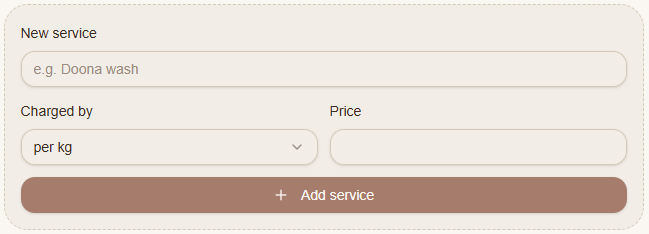
Scroll to New service beneath your existing services.
Enter the name of your service.
Choose the charging method under Charged by.
Enter the price.
Select Add service.
Your new service will be added to your service list.
You can create services that suit the way your laundry business operates.
Choose which services customers can book
Each service has a setting called Customers can book this.
Turn this on if you want customers to be able to select that service on your public booking page.
Turn it off if the service is only used internally, such as a charge you add manually to a job.
For example, you might allow customers to book Wash & Fold online while keeping additional fees available for you to add when needed.
Choose whether customers see your prices
For services available on your public booking page, you can also use Show a price on the booking page.
Turn this on if you'd like customers to see the service price when booking.
Leave it off if you'd prefer customers to select the service without seeing its price.
This gives you control over which prices are publicly displayed.
Remove a service
Each service has a rubbish bin icon beside it.
Select the icon to remove a service you no longer want in your list.
Before removing a service, check whether you still need it for future bookings or jobs.
Manage your expense categories
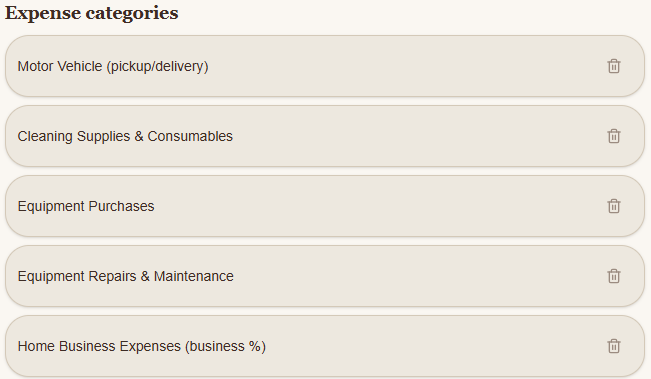
Further down the same page, you'll find Expense categories.
These help you organise the money you spend running your business.
Snook includes categories for common business expenses, such as cleaning supplies, equipment, fuel, insurance and software subscriptions.
To add your own category:
Scroll to the bottom of Expense categories.
Enter a name in New category.
Select Add.
You can also use the rubbish bin icon beside an existing category to remove it.
Expense categories are separate from the services you charge customers for.
Need help?
If you have questions about setting up your services, contact support@snookapp.au.