Article 30: How to set up your public booking page
How to set up your public booking page
Snook gives your laundry business its own public booking page, so customers can request a collection or book an available pickup time without needing to call or message you first.
Your booking page is automatically created using your business name and settings. You can share the link on Facebook, Instagram, your website or directly with customers.
Here's how to get it ready.
Find your booking page settings
Sign in to Snook.
Go to More → My Business.
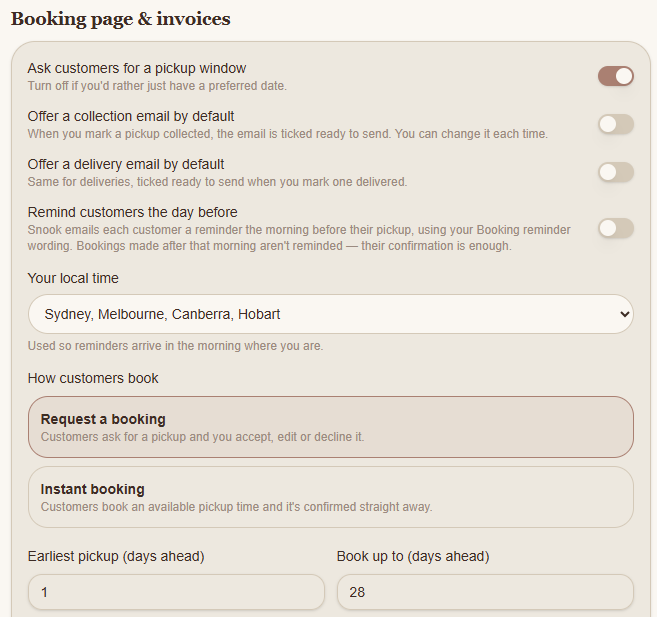
Scroll down to Booking page & invoices.
This is where you control how customers book, which pickup times are available and how far in advance bookings can be made.
Choose how customers book
Under How customers book, you'll see two options.
Request a booking
Customers submit a booking request, which you can accept, edit or decline.
This gives you the opportunity to review each booking before confirming it.
Instant booking
Customers select an available pickup time and their booking is confirmed immediately.
Snook uses your configured availability and booking limits to determine which times customers can choose.
Select whichever option works best for how you run your laundry business.
Set your booking availability
Under your booking settings, you can control:
Earliest pickup (days ahead): How much notice customers must give before booking.
Book up to (days ahead): How far into the future customers can book.
Pickup days and times: The days and collection windows you offer.
Maximum bookings: How many bookings you can accept within each pickup window.
Closed days: Dates when you aren't accepting bookings, such as holidays or days off.
You can also turn on Ask customers for a pickup window if you'd like customers to choose a preferred collection time.
For more detailed instructions, see our articles on setting pickup days and times, managing booking availability and setting daily capacity.
Check your services
The services you've added to Snook appear on your public booking page, allowing customers to select what they need.
To review or update them, go to More → Services & categories.
Make sure your service names are clear so customers understand what they're booking.
Add your Customer Terms & Conditions
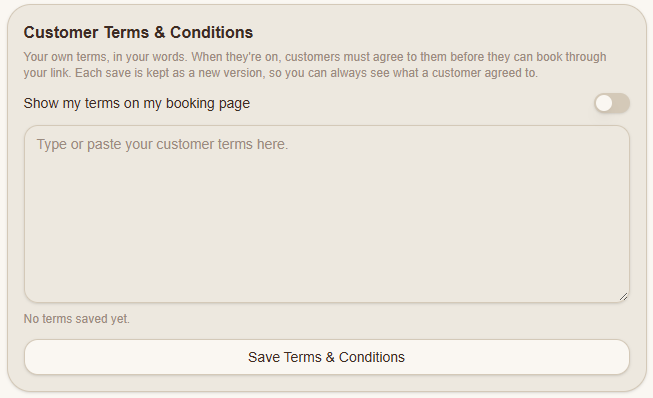
You can display your own terms on your booking page and require customers to agree to them before booking.
In My Business, scroll to Customer Terms & Conditions.
Turn on Show my terms on my booking page.
Type or paste your customer terms into the text box.
Click Save Terms & Conditions.
Snook keeps a version history of saved terms, so you can see which version a customer agreed to.
Save your booking settings
Once you're happy with your settings, click Save at the bottom of the My Business page.
Preview your public booking page
Scroll to Your public booking link in My Business.
You'll see your unique booking URL, along with Copy link and View requests.
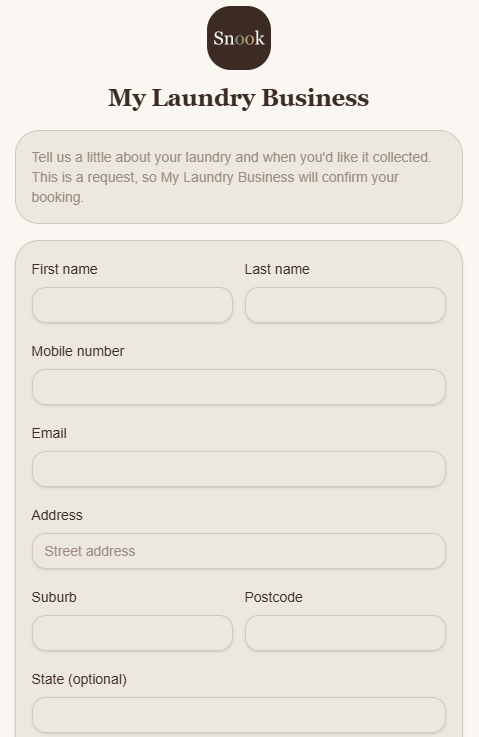
Open the URL to see what your customers will see.
Depending on your settings, customers can enter their contact details, choose services, select a pickup date, provide collection instructions and request regular bookings.
They can also tell you about allergies or sensitive skin and enter a promo or gift voucher code if they have one.
No payment is collected when a customer submits the booking form. Any charges are worked out when their laundry is priced.
Need help?
Having trouble setting up your booking page? Email us at support@snookapp.au and we'll be happy to help.