Article 27: How to update your payment method and view invoices
How to update your payment method and view invoices
Need to change the card you use to pay for Snook? Or find a receipt for a previous subscription payment?
You can manage your payment details and access your billing history through Stripe's secure Customer Portal.
Open your billing portal
Sign in to Snook.
Select More from the menu.
Scroll down to Subscription.
Click Manage subscription.
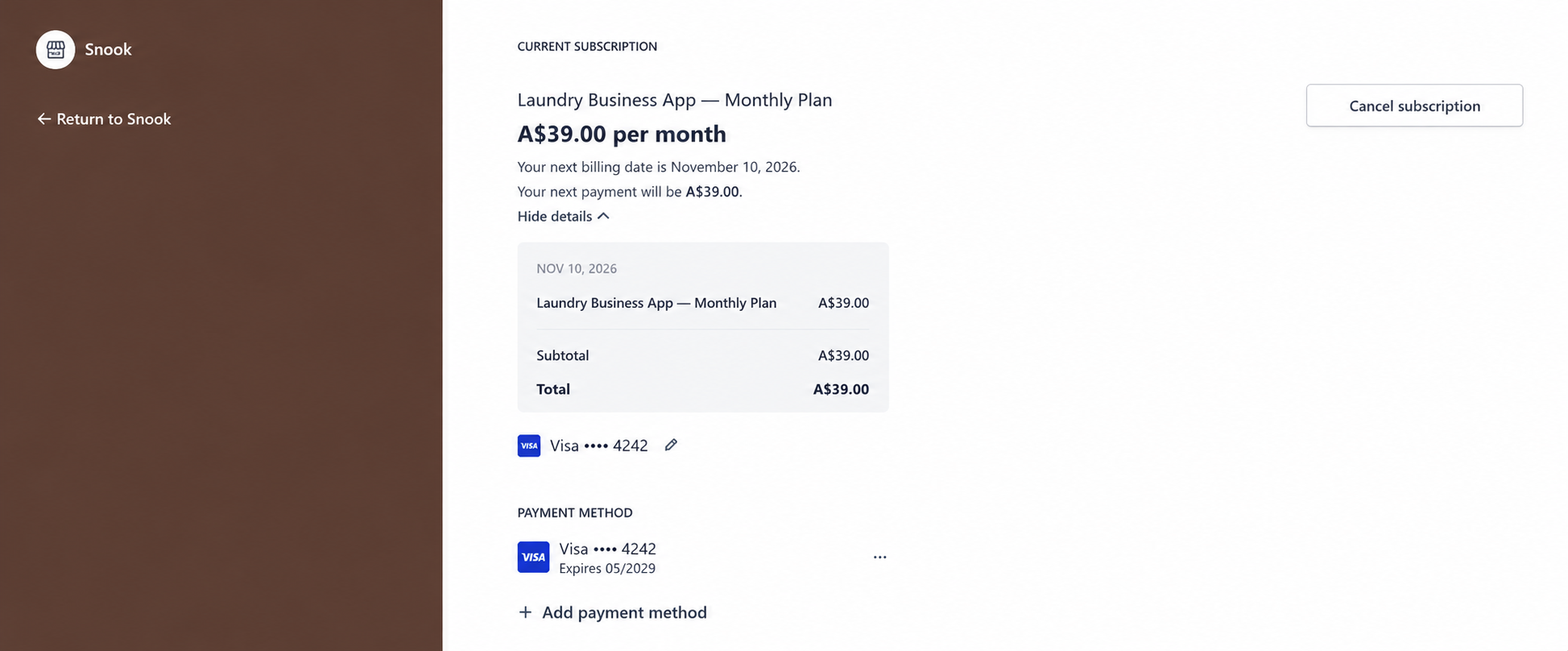
You'll be taken to the Stripe Customer Portal, where you can manage your Snook subscription payments.
Update your payment method
In the Stripe Customer Portal, find Payment method.
You'll see the card currently saved to your subscription.
Select Add payment method to enter a new card, or use the available edit or menu options to manage an existing card.
Follow Stripe's prompts to save your changes.
If you're replacing an existing card, make sure your new payment method is selected for future subscription payments.
Your payment information is handled securely by Stripe.
Update your billing information
You can also change the billing details associated with your subscription.
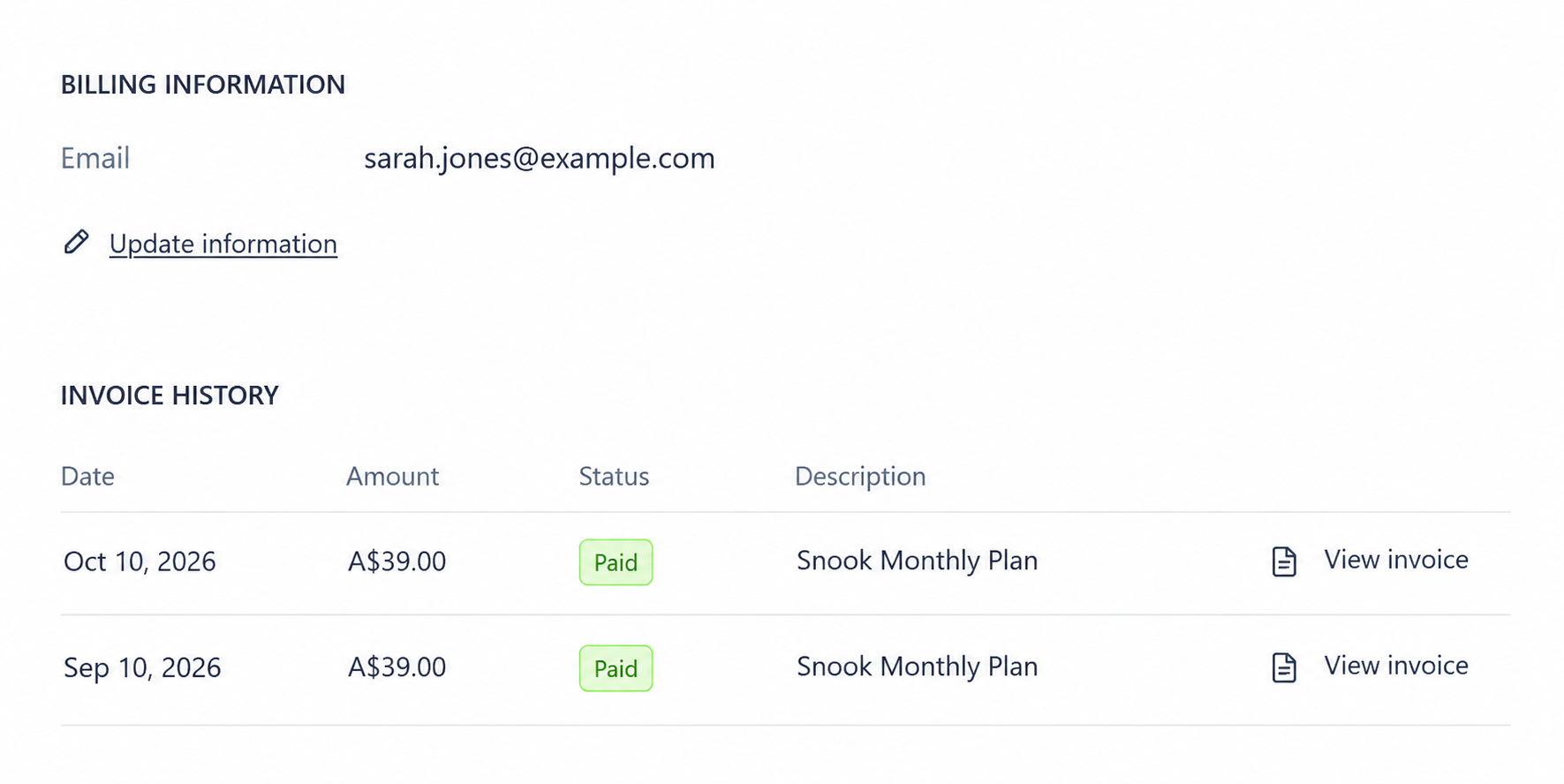
Scroll to Billing information.
Select Update information.
Make your changes.
Save your updated details.
Keeping your billing information current helps ensure your subscription invoices contain the correct details.
View and download previous invoices
Stripe keeps a record of your Snook subscription invoices.
Open the Stripe Customer Portal.
Scroll to Invoice history.
Find the invoice you want to view.
Select the invoice to open its details.
Use the available download option to save a copy for your records.
Your invoice history shows previous subscription charges, including their dates, amounts and payment status.
Please note: These are invoices for your Snook subscription, not the laundry invoices you create and send to your own customers.
What if my subscription payment fails?
If Stripe can't process your subscription payment, Snook will display an Update payment notification.
You can use that button to open the billing portal and update your card.
Snook provides a 7-day grace period following a failed subscription payment, during which you can continue using the app while resolving the issue.
If the issue isn't resolved, your account may become read-only until your subscription is reactivated.
Your existing business records remain available to view and export.
Need help?
Still need a hand? Email us at support@snookapp.au and we'll be happy to help.